Color palette from image
Use a picture to get either a colour palette or a single exact colour. Drop in a photo, screenshot, logo or design export and the palette panel gives you the colours the image is actually made of — clustered in OKLab, every swatch a real pixel from your picture. If you only need one value, the pixel picker underneath is how you take a single colour straight out of the image.
Drop an image here
Screenshots, photos, logos and design exports. Drag it anywhere on this page, paste it from your clipboard, or choose a file.
Private by design. Your image is opened and processed by your browser and is never uploaded to PaletteViva or anyone else. How this works
JPEG, PNG, WebP, AVIF, GIF and BMP — anything your browser can open. Up to 40 MB.
Pick the exact pixel
Sampling reads the image itself rather than the zoomed view on screen, so the value you copy is the value in the file — with a loupe to prove it. Very large images are sampled from a reduced copy, and the tool says when.
A palette you can trust
Colours are clustered perceptually in OKLab and snapped to real pixels, so no swatch is an averaged mush.
Export in one click
CSS variables, JSON, a Tailwind theme, SVG swatches or a palette PNG. Copy or download.
Why most image palettes look wrong
Most palette extractors average colours in RGB. Averaging in RGB is arithmetic on three unrelated numbers: the midpoint between red and green comes out as a muddy brown that exists in neither the image nor anyone's perception of it. Photographs then spend most of their pixels on mid-tone gradients, so the extractor dutifully returns six shades of grey while the one colour you actually wanted never appears.
This is why the same tool is also the sensible place to pick a single colour out of a picture — not only to extract a palette from it. When the job is one exact value rather than many, the rest of the page still earns its keep: you are already looking at the image, the privacy model is already yours and only yours, and the value you copy is the pixel you were pointing at rather than the zoomed colour on screen.
PaletteViva makes three different choices.
- Clustering happens in OKLab. OKLab is a perceptually uniform space, so distance in OKLab corresponds to how different two colours look. Two colours that land in the same cluster are ones you would also group together.
- Every swatch is a real pixel. Clusters decide which colours win, but the value returned is the cluster's medoid — the actual pixel nearest the cluster centre. A palette can therefore never contain a colour that is not in your image. There is a unit test that enforces this.
- Flat artwork is counted, not clustered. When an image has few distinct colours — a logo, an illustration, a UI screenshot — clustering invents blends between them. In that case the palette counts the exact colours instead, which is what a brand-colour workflow needs. (For picking a single colour out of a phone screenshot, getting the hex from an iPhone screenshot covers the mobile steps.)
Four questions, four palettes
“The palette this image is made of” is not always the palette you need. A grey photograph with one vivid subject answers a different question than a colourful one you have to build a calm interface from. Above the swatches there are four rules, all applied to the same set of real colours:
- Dominant
- Ranked by how much of the image each colour covers. The right default, and what most tools mean by “extract palette”.
- Balanced
- Chooses the colours that are furthest apart perceptually, among the ones that genuinely appear, so you get a spread rather than four neighbouring shades of sky.
- Vibrant
- Ranks by chroma and by how close a colour sits to the lightness we read as vivid. This is the one that finds the flower in a mostly grey photograph.
- Muted
- The quiet, desaturated tones — for neutral backgrounds and restrained palettes that still come from your picture rather than from a preset.
Whichever you choose, every swatch is still a real pixel from your image. The rule decides which colours are picked, never what they are.
How many colours should a palette have?
Five or six is the sweet spot for most work: enough separation to build a hierarchy, few enough that each colour carries a job. Twelve is the practical ceiling — past that, extra swatches are perceptually near-identical and stop adding information. The tool caps at twelve for that reason rather than offering twenty-four.
If an image genuinely contains fewer distinct colours than you asked for, you get fewer swatches and a note saying so. Reproducing one colour six times to fill the row would look tidier and tell you less.
Taking the palette somewhere else
Exports are generated in your browser from the palette on screen, so they can never drift
from what you were looking at. CSS custom properties drop straight into a stylesheet; the
JSON document carries hex, RGB, HSL, OKLCH and each colour's share of the image, which is
useful when you need to rank a brand's colours by prominence; the Tailwind block is a
ready-made @theme; the SVG is a real vector swatch sheet you can edit or print;
and the PNG is sized for sharing.
Extracting a palette from a logo is a common starting point for a brand refresh — see why a logo's colours can read differently in different tools before you commit to values, and how palette extraction works for why a flat logo needs a different algorithm from a photograph.
Two swatches from a palette are also the starting point for a background: the gradient generator takes any pair, sets an angle and hands you the CSS — and if those two colours end up as text on each other, the contrast checker will tell you whether that is readable.
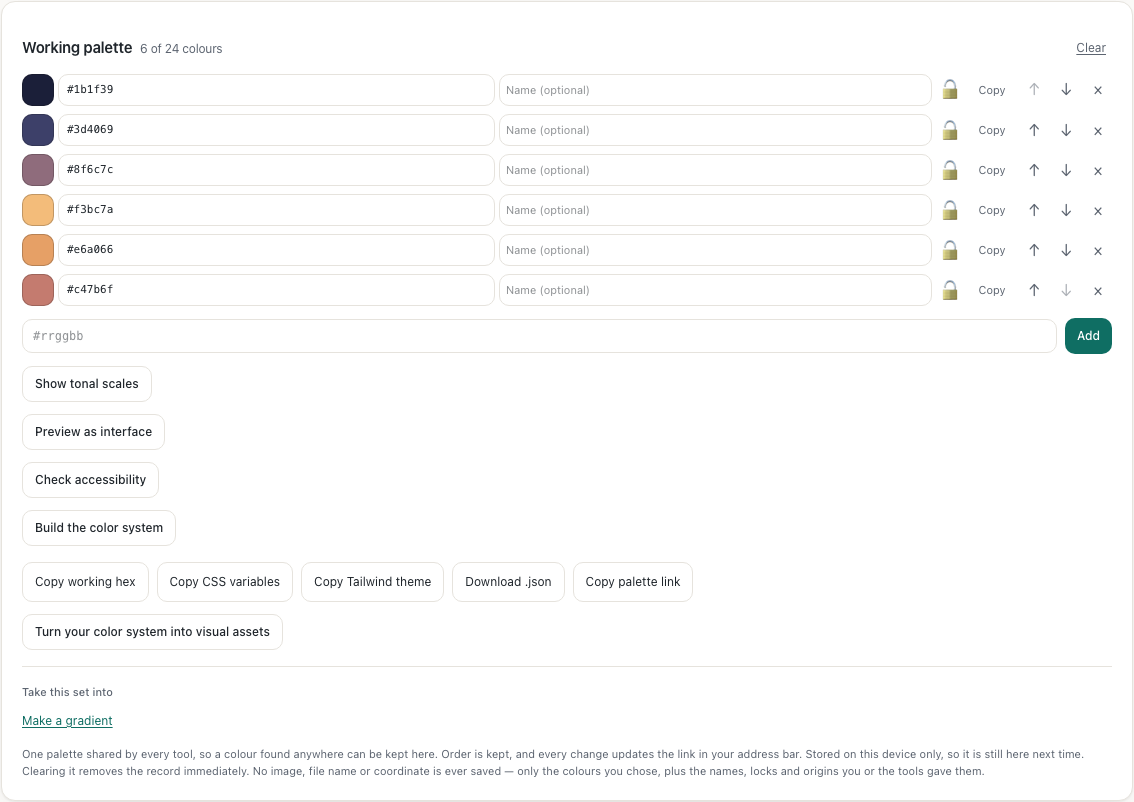
Colours you want to keep can be added to the working palette with the “Add to working palette” button, which stores them on your device so they survive a reload. That, plus your light/dark appearance choice, is all this site writes to your device, and it is hex codes only — see exactly what is stored .
Keeping a palette is also what makes it checkable. The working palette carries a contrast audit that measures every pair of its colours against WCAG 2.2 — normal text, large text and non-text UI boundaries — as a grid you can scan for failures, and each failing pair can be opened to see its exact ratio, why it fails and the nearest colour that passes with the hue kept. Applied or not is your decision; nothing changes until you press the button, and the change can be put back afterwards.
And when the question stops being “which colours are in this picture” and becomes “what are
these colours for”, the
color system builder
takes the same palette, assigns it to semantic roles like surface, text and focusRing, derives the hover, active, disabled and
selected states from each fill's own tonal scale, and exports the result as design tokens.